Before you change anything
- Confirm the correct venue
- Keep current settings handy
- Test with one device first
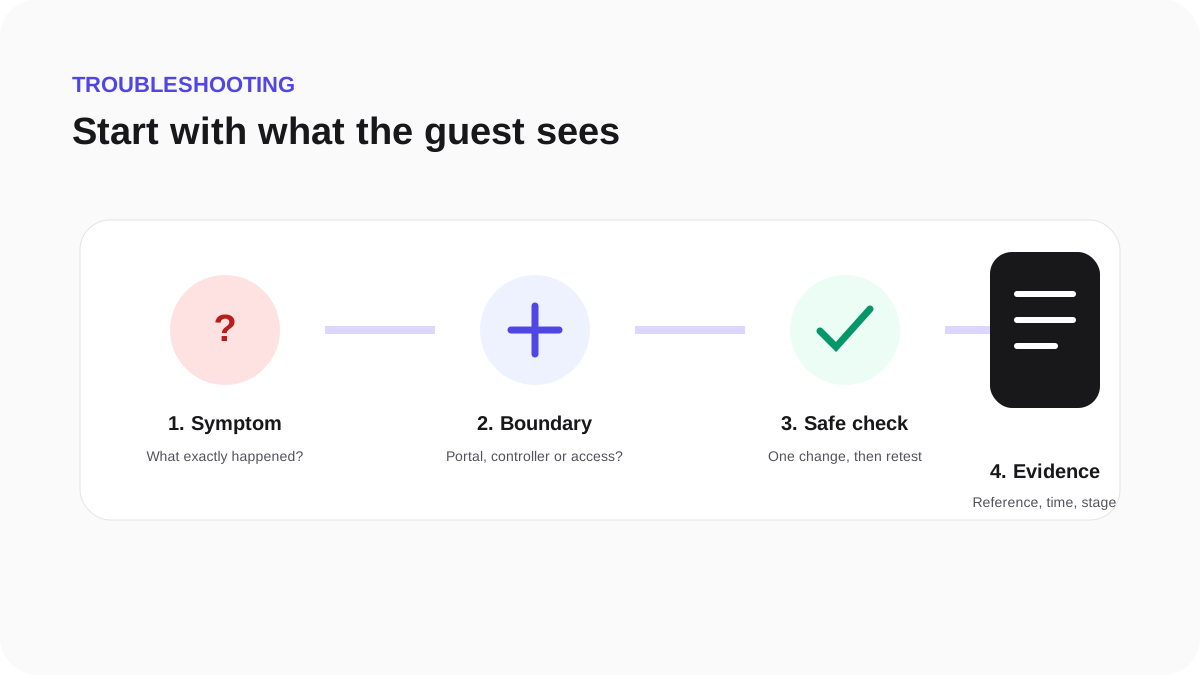
The portal opens but internet access fails
Portal rendering and network authorization are separate stages. If the form opens, check what happens after submission.
- Confirm terms were accepted and the finishing screen appeared.
- Open the hardware live test and identify whether the authorization request was received and accepted.
- Confirm the hardware uses the current host, ports, shared secret and portal assignment.
- Check controller accounting settings when the guide requires them.
- Test ordinary HTTPS browsing on a fresh connection.
Share the support reference and the first incomplete milestone with support. Never include a shared secret, password or guest identifier.