Before you change anything
- Confirm the correct venue
- Keep current settings handy
- Test with one device first
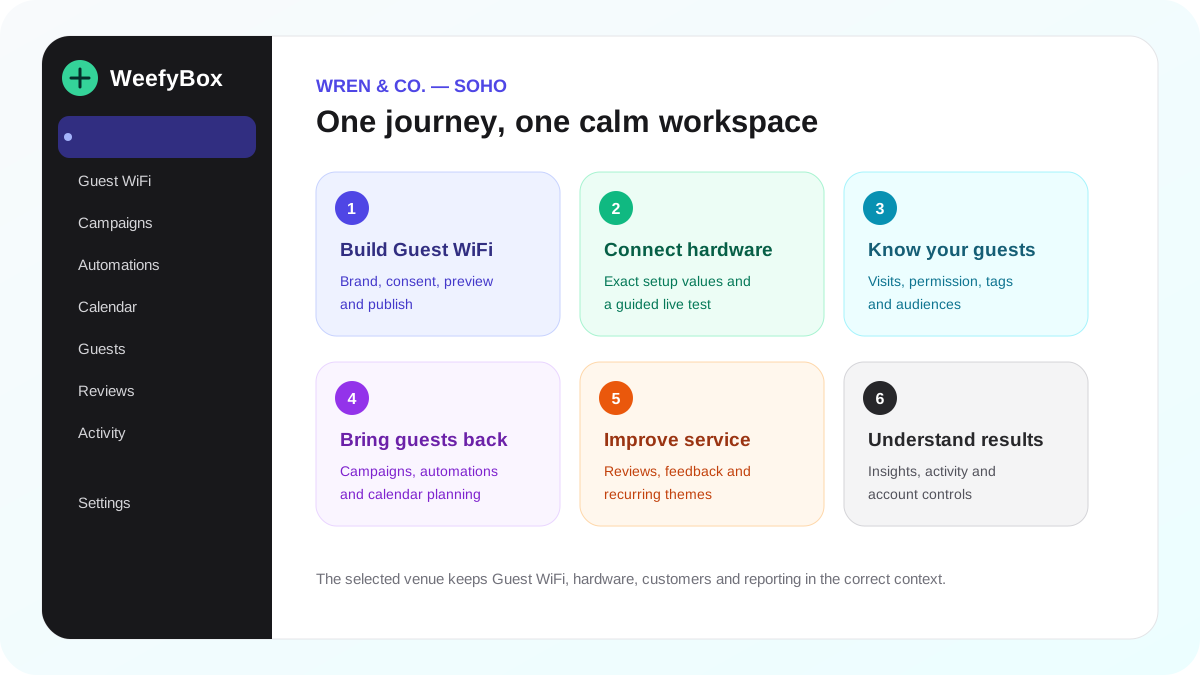
Explore every key feature
WeefyBox brings the guest connection, customer permission, follow-up marketing and venue reporting into one workspace. This guide explains the main customer-facing features that are currently available and how they fit together.
What appears in an account can vary by subscription, team role and global feature controls. Hidden launch features such as SMS and loyalty are not part of this guide.
The end-to-end journey
- Create and select a venue.
- Build and publish the venue's Guest WiFi journey.
- Connect compatible WiFi hardware and complete the guided live test.
- Let guests connect and record only the details and permissions shown on the published journey.
- Use audiences, campaigns and automations to bring eligible guests back.
- Track connection activity, marketing outcomes, reviews and recurring feedback.
Today dashboard
Today is the operational starting point. It brings together the selected venue's current activity and the next useful actions rather than requiring every report to be opened separately.
Always check the venue switcher before acting. Most customer data, Guest WiFi settings, hardware and reporting are scoped to the selected venue.
Guest WiFi Builder
The Guest WiFi Builder controls the phone-first journey a guest sees before getting online. It includes:
- branding, colours, imagery and welcome content;
- guest-detail fields selected by the venue;
- required WiFi terms kept separate from optional marketing permission;
- connected-screen, social or website redirect behaviour;
- session and returning-guest settings;
- a safe preview that does not create a guest CRM record;
- review and publish controls.
Publishing creates the version used by the selected venue. Preview before publishing and repeat the preview after significant content or consent changes.
Hardware setup
Hardware turns a published Guest WiFi journey into an operational venue connection. The guided setup presents the exact controller, portal, redirect, allowlist, port or secret values required by the selected integration.
The publicly available, physically tested launch paths are:
- Aruba Instant On;
- TP-Link Omada;
- Ubiquiti UniFi.
Setup status and a saved configuration are not substitutes for a real test. Use the connection check, then join the SSID on a fresh phone and prove portal opening, terms acceptance, guest authorisation and ordinary browsing.
For short-term external engineering work, use the temporary Installer — hardware only role rather than sharing an administrator login.
Guests and audiences
Guests is the customer record built from trusted portal and visit activity. Depending on the information the venue chose to collect, a profile can show contact details, visits, consent, message history, tags and account activity.
Audiences group eligible guests using criteria such as permission, visit recency, visit count and tags. Review the matching people before using an audience. A visit or device record does not by itself mean that marketing permission exists.
Privacy actions remain scoped: export a single guest when handling a genuine request, suppress future marketing when required, and use the documented erasure workflow rather than editing evidence manually.
Campaigns
Campaigns provide a guided email workflow:
- choose the outcome;
- select an eligible audience;
- build the email with the visual content editor;
- preview and review it;
- send or schedule it;
- read delivery, engagement and return-visit results where evidence is available.
Unsubscribe and suppression checks are applied by the sending workflow. Do not import cold lists or send to a guest who did not grant the relevant permission.
Automations
Automations run repeatable guest journeys from supported triggers and rules. Templates provide a practical starting point, while the visual email editor uses the same content-building experience as campaigns.
An automation can wait, evaluate supported conditions, apply tags and send eligible email. Pause an automation before making significant changes and test it before activating it. Starter is limited to one active automation; Growth and Pro support unlimited automations.
Calendar
Calendar combines the selected venue's scheduled campaigns, waiting automation messages and important venue dates.
Custom venue dates can represent a promotion, holiday, community event or reminder and can repeat annually. They are planning entries only: adding a calendar date never sends a campaign or changes an automation.
Reviews
Reviews brings review requests, public review destinations, private feedback and performance into one focused workspace. It can provide:
- a shareable review page and QR code;
- post-visit request rules with consent and cooldown controls;
- private feedback cases for service recovery;
- external review highlights when a supported source is configured;
- recurring service themes with positive and concern counts;
- week-on-week review and feedback trends.
WeefyBox does not hide public review options from unhappy guests. Review Shield features require Growth or Pro.
Insights and activity
Insights and value reporting turn verified visits and marketing activity into venue-level trends. Use them to understand repeat visits and campaign outcomes without treating estimates or incomplete attribution as confirmed revenue.
Activity provides an operational trail of important workspace events. It is useful when checking what changed, when it changed and which signed-in team member performed the action.
Team, venues and temporary installers
Owners and administrators manage the account from Settings. Each person should have an individual login.
- Owner: ownership, billing and final account control.
- Administrator: venue, marketing, hardware and team administration.
- Manager: day-to-day customer and marketing work within assigned access.
- Staff: restricted operational access.
- Installer: temporary, hardware-only access to selected venues for 1, 3, 7, 14 or 30 days.
Create each physical property as its own venue, keep its timezone correct and verify the active venue before changing Guest WiFi or hardware.
Billing, account security and support
Settings → Billing shows the current plan and opens Stripe-hosted checkout or billing management. Billing-address, tax, invoice, payment-method and promotion-code behaviour is handled in the hosted Stripe flow configured for WeefyBox.
Use email verification, a strong unique password, two-factor authentication or a passkey. Privileged staff access has additional controls and should never be shared.
The public Help Centre contains setup and troubleshooting guides. The in-app support assistant searches the same published knowledge source, so its source links lead back to information a customer can verify.
A practical weekly routine
- Check Today and Activity for the selected venue.
- Review Guest WiFi and hardware health after any controller or network change.
- Review new guests, permission and audience movement.
- Check scheduled work in Calendar.
- Review campaign and automation outcomes.
- Read new reviews, private cases and recurring themes.
- Remove expired or unnecessary team and installer access.